Installation
Download
You can download the latest version of the Nextcloud Desktop Synchronization Client from the Nextcloud download page. Clients are available for Linux, macOS, and Microsoft Windows.
You will also find links to source code archives and older versions on the download page.
Supported server versions
Each desktop client release supports the latest three stable Nextcloud server major versions at the time of release. See the Nextcloud Server release schedule for supported major versions.
System Requirements
Windows 10+ (64-bits only)
macOS 12.0+ (64-bits only)
Linux (Ubuntu 24.04 or openSUSE 15.5 or Alma 8 or …) (64-bits only)
For Linux distributions, we support, if technically feasible, the current LTS releases. For BSD, we support them if technically feasible, but we do not test them.
Note
We do not support Citrix.
We will do our best to advise Citrix users from the desktop client point of view.
We will fix issues that are also reproducible on the standard supported systems.
Everything else is outside of our scope.
Install on macOS and Windows
Installation on macOS and Windows is the same as for any other software application: download the program and then double-click it to launch the installation, and then follow the installation wizard. After it is installed and configured the desktop client will automatically keep itself updated; see The Automatic Updater for more information.
For administrator-focused deployment options such as advanced Windows MSI configuration, non-interactive account provisioning, and command-line wizard preconfiguration, see the Admin Manual chapter on desktop client deployment and setup.
Install on Linux
For Linux, Nextcloud officially provides the desktop client as an AppImage on the Nextcloud download page.
Some Linux distributions also provide the Nextcloud desktop client through their package managers. These packages are maintained by the distribution or community, not by Nextcloud. If you prefer a package-managed installation, refer to your distribution’s documentation.
Linux users must also have a password manager enabled, such as GNOME Keyring or KWallet, so that the desktop client can log in automatically.
Initial setup
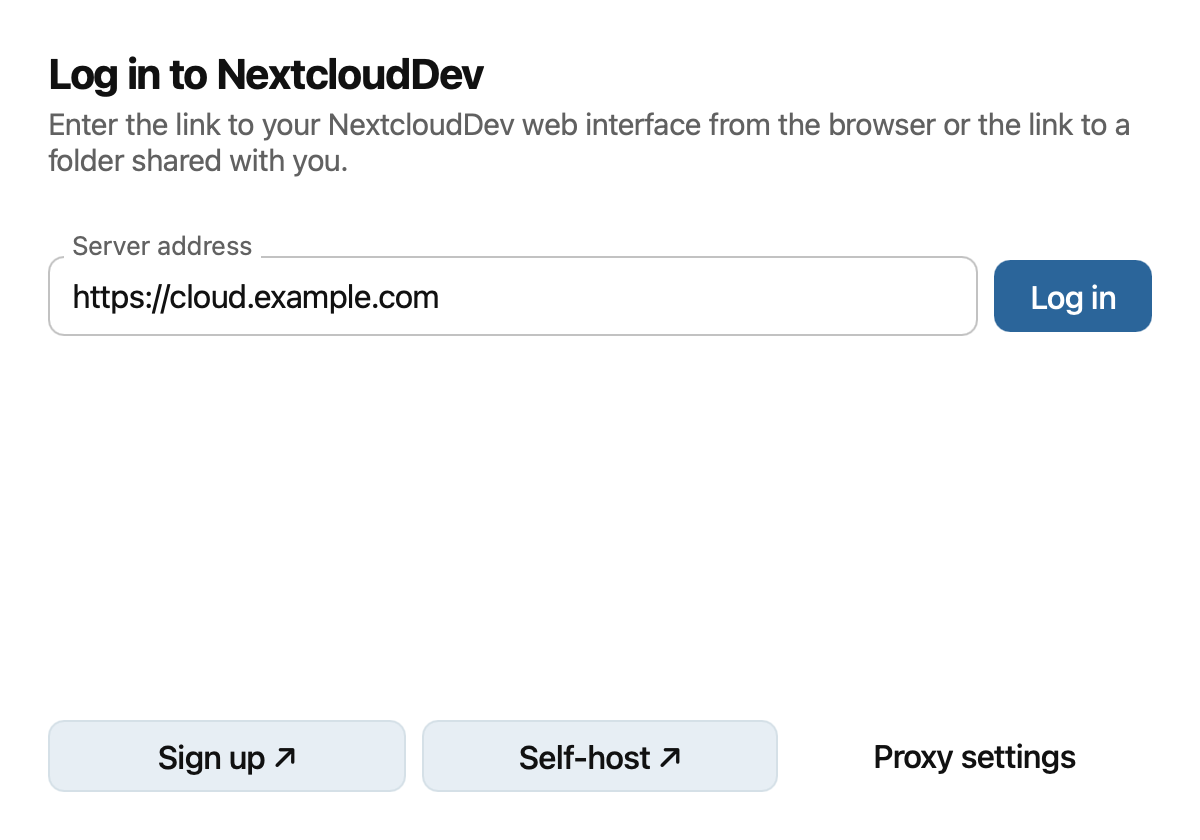
After installation, the setup wizard opens. Enter the address you use to access your Nextcloud server in a browser, then click Log in.
For the remaining wizard steps, including browser authorization and sync options, see Add account.